Preparing a Data-Reduction Workspace
A ‘workspace’ is simply a directory you create and designate as the location on your machine where you will reduce your data. It is advisable to have multiple workspaces (folders) for multiple datasets.
First, create your workspace (you can call it whatever you want):
cd ~/
mkdir soxs-workspace-one
cd soxs-workspace-one
Now download/move all of the SOXS raw data from your data set into the root of this workspace. There is no need for nested folders; just fill the directory with FITS files.
soxspipe has a built-in data organiser that does the heavy lifting of sorting and preparing your raw data for data reduction. So to prepare your workspace, change into the workspace directory and run the soxspipe prep command:
cd ~/soxs-workspace-one
soxspipe prep .
Once the workspace has been prepared, you should find it contains the following files and folders:
misc/: a lost-and-found archive of non-fits filesqc/: a directory to host the quality control data and plotsraw/: all raw frames to be reducedreduced/: a directory to host the reduced datasessions/: directory of data-reduction sessionssof/: the set-of-files (sof) files required for each reduction stepsoxspipe.db: an SQLite database needed by the data-organiser; please do not deletesoxspipe.yaml: file containing the default settings for each pipeline recipe
Your workspace is now prepared, and you are now ready to reduce your data.
Data Reduction Sessions
soxspipe reduces data within a ‘reduction session’. These sessions are designed to be self-contained and isolated from other sessions, allowing users to reduce the same set of raw data with multiple different pipeline settings. An initial ’ base ’ session is automatically created when a workspace is first prepared (using the soxspipe prep command). Sessions are stored in the sessions directory of the workspace and contain their own settings file, products and QC directories. soxspipe will remember and use the latest session you were working with unless you create a new session or switch to another one.
To see which reduction session you are working within and all other sessions available, run the command:
soxspipe session ls
To create a new session, run the command:
soxspipe session new
The new session will be named with the date-time stamp of its creation date. Alternatively, you can also supply a memorable name for the session. The name can be up to 16 characters long and use alpha-numeric characters, - or _.
soxspipe session new my_supernova
Or to switch to an existing session, run the command:
soxspipe session <sessionId>
For user convenience, when you switch to a new session, the symbolic links found within the workspace root folder are automatically switched to point to the current session assets (products, qc, sof, soxspipe.yaml,soxspipe.db etc). If you run ls -lrt within your workspace root directory, you will see these symlinks reported:
products -> ./sessions/base/products
qc -> ./sessions/base/qc
soxspipe.db -> ./sessions/base/soxspipe.db
soxspipe.yaml -> ./sessions/base/soxspipe.yaml
sof -> ./sessions/base/sof
Listing The Content of a Workspace
List OBs
The soxspipe list commands can be used to list the science content of the workspace. To list all of the science OBs contained within a workspace, run the command soxspipe list obs <workspaceDirectory>.
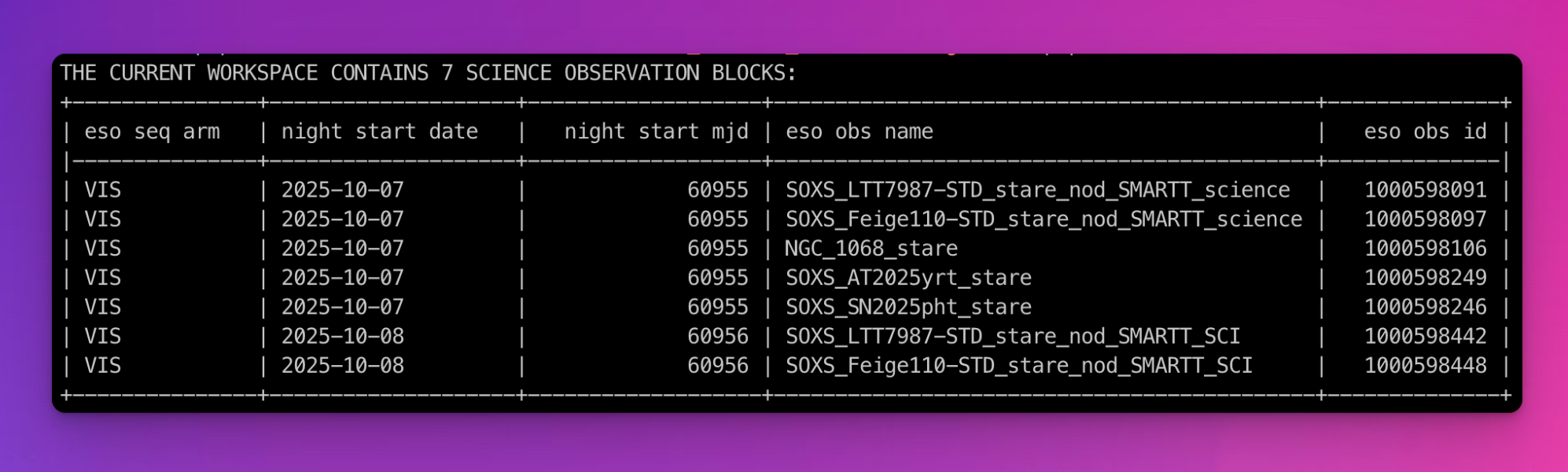
Fig. 8 Listing the OBs contained within a workspace with the soxspipe list obs . command.
List SOF files
An OB can contain multiple telescope-instrument setups (slit-widths, observing modes etc), but each individual setup will be listed in a unique SOF file. To list all of the science set-of-files (SOF) files contained within a workspace, run the command soxspipe list sof <workspaceDirectory>.
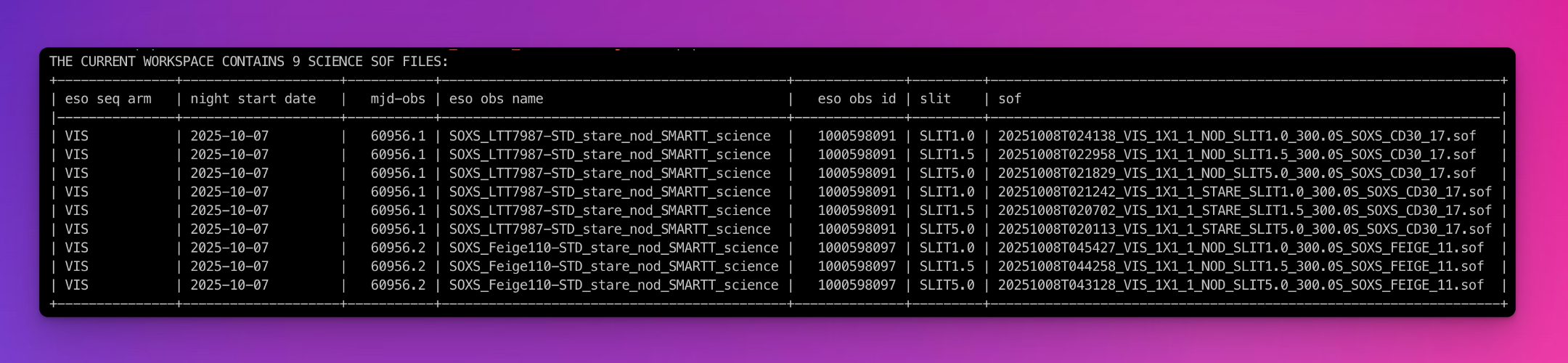
Fig. 9 Listing the science SOF files contained within a workspace with the soxspipe list sof . command.